> For the complete documentation index, see [llms.txt](https://docs.binkbtc.com/llms.txt). Markdown versions of documentation pages are available by appending `.md` to page URLs; this page is available as [Markdown](https://docs.binkbtc.com/tutorials/deposit-funds.md).
# Deposit Funds
### Overview
This tutorial walks you through depositing Bitcoin and USDC into your Bink account. You'll learn how to use different deposit methods including Bitcoin Network L1, Lightning Network, and USDC from multiple blockchain networks.
All deposits are added to your Available Balance. To start earning yield, you'll need to move funds from Available Balance to Savings Balance after they arrive.
***
### Before You Start
**What You'll Need:**
* Active Bink account
* Bitcoin or USDC in an external wallet or exchange
**Important Notes:**
* Always send only the specified asset to each deposit address
* Sending wrong assets may result in permanent loss of funds
* Double-check the network before sending (especially for USDC)
* Keep your sending wallet/app open until the transaction completes
***
### Depositing Bitcoin via Bitcoin Network
Bitcoin L1 deposits are suitable for larger amounts and take approximately 10 minutes.
#### Step 1: Access Add Funds
From your home screen, tap the **Add Funds** button.
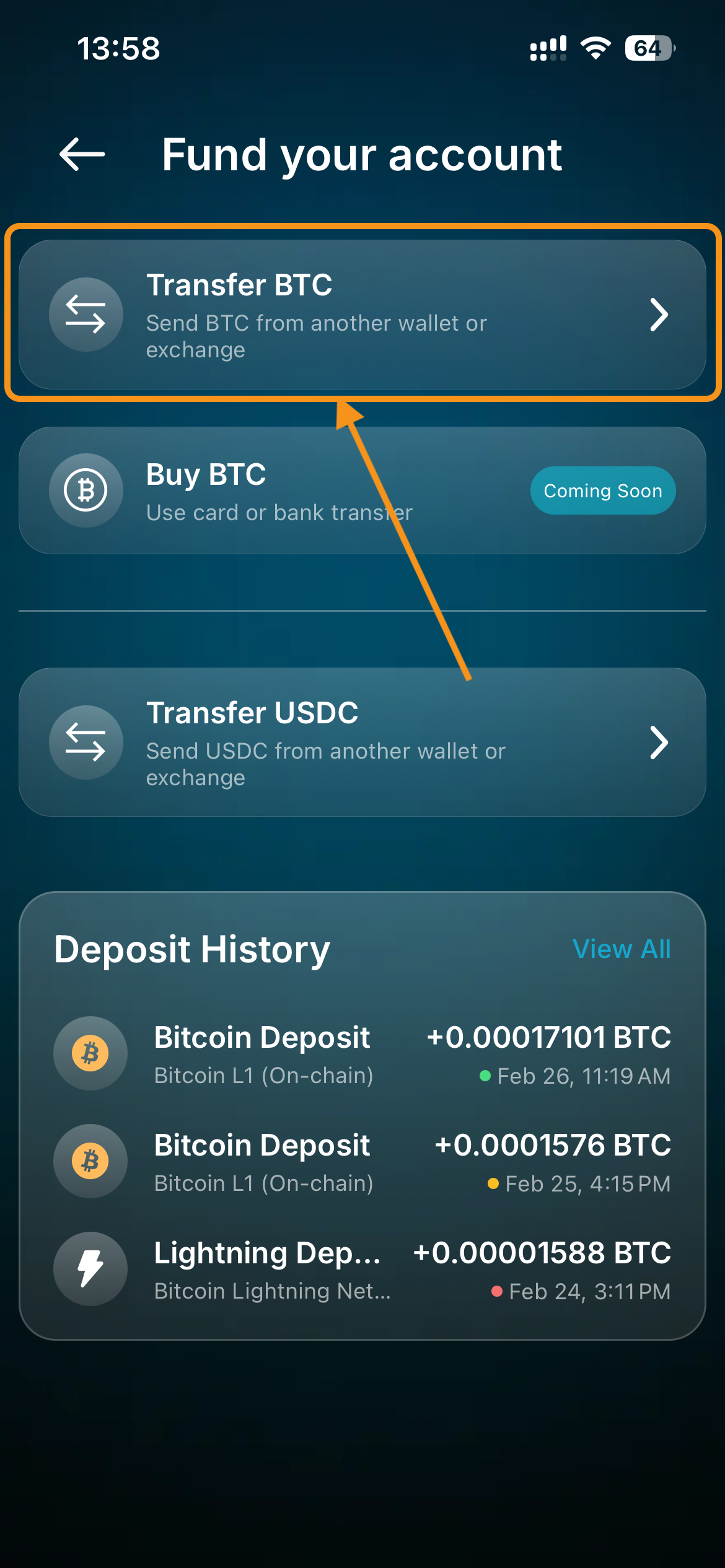
#### Step 2: Select Transfer BTC
On the "Fund your account" screen, tap **Transfer BTC**.
#### Step 3: Select Bitcoin Network L1
On the Deposit screen, ensure **BTC** is selected in "Choose Asset".
Under "Supported Networks": Tap **Bitcoin Network L1.**
Tap **Next**.
#### Step 4: View Your Deposit Address
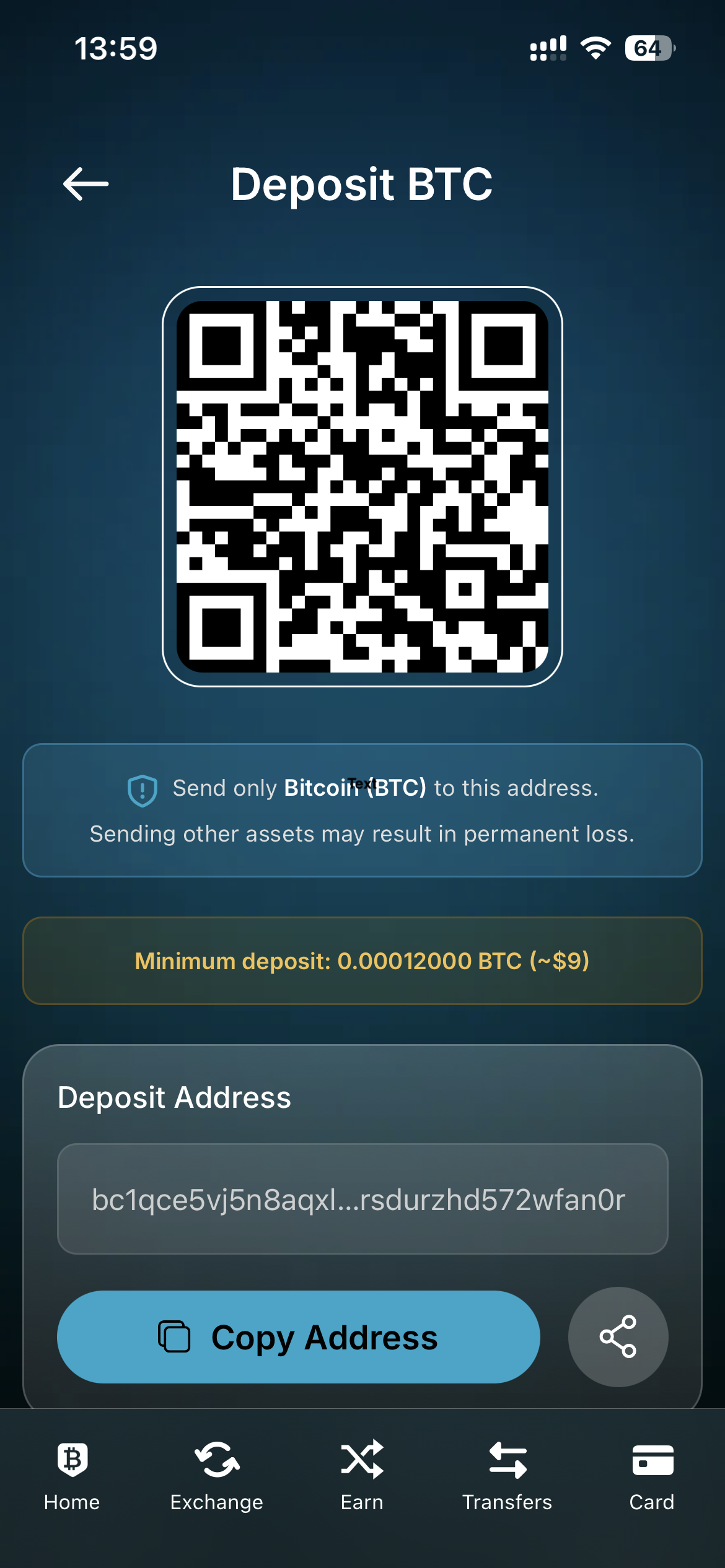
The "Deposit BTC" screen displays:
* **QR code** at the top for scanning
* Your Deposit Address to be used in your exchange or external wallet
**Deposit Details:**
* **Minimum:** 0.00012000 BTC
* **Processing time:** \~10 minutes
#### Step 5: Send Bitcoin
From your sending wallet or exchange:
1. Navigate to Send/Withdraw Bitcoin
2. Either:
* **Scan the QR code** from the Bink screen, OR
* **Copy the address** by tapping "Copy Address" and paste it
3. **Important:** Ensure you're sending on the Bitcoin network (not Lightning or other networks)
4. Enter the amount you want to send
* Must be at least 0.00012000 BTC
5. **Verify the address** - Double-check the first and last few characters match
6. Confirm and send the transaction
#### Step 6: Track Your Deposit
After sending:
* The transaction will appear in your **Deposit History** on the "Fund your account" screen
* Status indicators:
* 🟡 Yellow dot: Transaction pending/confirming
* 🟢 Green dot: Completed
* Shows: Amount, network (Bitcoin L1 On-chain), timestamp
**Typical Timeline:** \~10 minutes
#### Step 7: Funds Arrive
Once confirmed:
* You'll receive a notification
* Funds appear in your Available Balance
* Ready to use, move to Savings, or transact with
***
### Depositing Bitcoin via Lightning Network
Lightning deposits are instant and ideal for smaller amounts.
#### Step 1: Access Add Funds
From your home screen, tap the **Add Funds** button.
#### Step 2: Select Transfer BTC
On the "Fund your account" screen, tap **Transfer BTC**.
#### Step 3: Select Lightning Network
On the Deposit screen, ensure **BTC** is selected in "Choose Asset".
Under "Supported Networks": Tap **Lightning Network**.
Tap **Next**.
#### Step 4: Enter Deposit Amount
On the "Add Funds" screen:
* Enter the amount you want to deposit in USD or in BTC
* The BTC or USD equivalent displays below
* **Minimum:** $1
Tap **Next** once you've entered your amount.
#### Step 5: Get Your Lightning Invoice
The "Lightning Deposit" screen displays:
* **QR code** at the top for scanning
* **Lightning Invoice string** that can be easily copied or shared.
**Deposit Details:**
* **Minimum:** 1 USD equivalent
* **Processing time:** <1 minute
#### Step 6: Pay the Invoice
From your sending wallet or exchange:
1. Open the Lightning send/payment function
2. Either:
* **Scan the QR code** displayed on screen, OR
* **Copy the invoice** by tapping "Copy Invoice" and paste it into your wallet
3. Verify the amount matches what you requested
4. Confirm and send the payment from your wallet
#### Step 7: Confirmation
Once payment is sent:
* Lightning payments confirm almost instantly
* You'll receive a notification when funds arrive
* Funds appear in your Available Balance
* View the transaction in your Deposit History
**Typical Timeline:** Less than 1 minute from payment to confirmation.
***
### Depositing USDC
Deposit USDC from Ethereum, Botanix, Polygon, NEAR Protocol, and other supported networks.
#### Step 1: Access Add Funds
From your home screen, tap the **Add Funds** button.
#### Step 2: Select Transfer USDC
On the "Fund your account" screen, tap **Transfer USDC**.
#### Step 3: Select Your Network
Under "Supported Networks," you'll see multiple options such as:
* **Botanix**
* **Ethereum**
* **Polygon**
* **NEAR Protocol**
* **Avalanche**
* (Additional networks are available - use search if needed)
**Select your network:** Tap the network where your USDC currently exists
#### Step 4: View Your Deposit Address
The "Receive USDC" screen displays:
* **QR code** at the top
* Your **deposit address**
**Deposit Details:**
* **Minimum:** 0.5 USDC
* **Fee:** 0.01 USDC
* **Processing time:** Depends on the network
#### Step 5: Send USDC
From your sending wallet or exchange:
1. Navigate to Send/Withdraw USDC
2. **Select the correct network**
3. Either:
* **Scan the QR code**, OR
* **Copy the address** and paste it into your wallet
4. Enter the amount you want to send
* Must meet the minimum for that network
5. **Verify**:
* Address matches (check first and last characters)
* Network matches (Ethereum to Ethereum, Polygon to Polygon, etc.)
* Asset is USDC (not USDT or other stablecoins)
6. Confirm and send
#### Step 6: Processing
After sending:
* Transaction appears in **Deposit History**
* Status indicators:
* 🟡 Yellow dot: Processing
* 🟢 Green dot: Completed
* Shows: Amount, network name, timestamp
**Typical Processing Times:**
* Botanix: \~5 seconds
* Ethereum: \~1-2 minutes
* Polygon: \~30 seconds - 1 minute
* NEAR Protocol: \~1 minute
#### Step 7: Confirmation
Once the transaction confirms:
* Notification sent to your device
* USDC appears in your Available Balance
* View in **Deposit History** with green completion status
***
### Tips for Successful Deposits
**Start Small:** Send a small test transaction first, especially if it's your first time or a large amount. Once confirmed, send the remaining balance.
**Check Fees:** Different networks have different fees. Ethereum typically has higher gas fees than Polygon or Botanix. Factor this into your decision.
**Save Time:** Bookmark or save your deposit addresses for future deposits (they remain valid), but always verify the address each time you use it.
**Network Selection for USDC:**
* **Botanix:** Fastest, lowest fees, native network
* **Ethereum:** Most widely supported, higher fees
* **Polygon:** Good middle ground - fast and low fees
* **Other networks:** Check availability on your sending platform
**Lightning vs Bitcoin L1:**
* **Lightning:** Best for small amounts, instant, ideal for frequent deposits
* **Bitcoin L1:** Best for larger amounts, more widely supported by exchanges